

AutoCAD Tips & Tricks
Today's Tip
AutoCAD Alias Editor
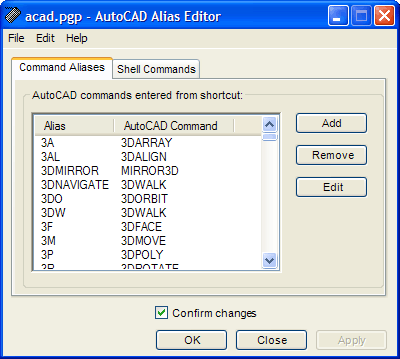 If you're new to AutoCAD or even if you're not and you find it difficult to remember all the keyboard shortcuts to your favourite commands like L for Line and C for Circle or even 3DO for 3DOrbit, then you need to know about the AutoCAD Alias Editor.
Enter ALIASEDIT at the command line and AutoCAD will launch a tiny application window that lists all the shortcuts in alphabetical order. As this is a seperate application, you can keep it minimised on your taskbar until you need it for reference.
Essentially, this editor simply lists the contents of the acad.pgp file where all the command aliases are stored. Those of you who are a bit more adventurous, may even like to use the Alias Editor to create your own aliases or edit existing ones.
Yesterday's Tip
Extend/Trim commands
While in the middle of either of the Trim or Extend command, you don't have to exit out of one to start the other; they're virtually the same command. So if you're using Trim, and need to Extend, simply hold down the SHIFT key and it will convert to the Extend command, and vice-versa.
Friday's Tip
DWG TrueView
 Quite often, you need to share your AutoCAD drawings with co-workers or others who don't have a copy of AutoCAD. In the past, this meant either providing drawings in DWF or buying some special viewing software. Well, now you can share your drawings files in DWG format for free.
Autodesk's own DWG TrueView application is free to download and install, and it looks just like AutoCAD. Co-workers without AutoCAD can not only view your drawings but they can plot them too and publish them as DWF. See here for more information.
Thursday's Tip
Selection Preview Cycling
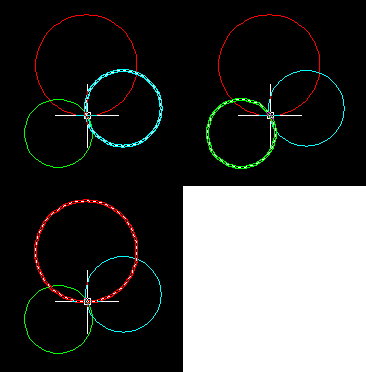 Making positive selections is much easier now that AutoCAD highlights (previews) objects as you mouse over them. However, it can still be difficult to select the right object when drawings become complicated with lots of overlapping objects. Fortunately, AutoCAD allows you to cycle through all the overlapping objects under the cursor.
All you need to do is hold down the Shift key and then repeatedly hit the Spacebar (Shift + Space). Each object under the cursor will be highlighted in turn and you can easily pick the one you want.
You can use a similar technique to cycle through sub-objects such as faces and edges on 3D Solids. To cycle through sub-objects, hold down the Control key and hit the Spacebar repeatedly (Ctrl + Space).
Wednesday's Tip
Auto-repeating Commands
 Sometimes you need to repeat a command lots of times and it can be a bit tedious doing the usual and or even using the Enter (
 ) key on the keyboard. It would be really useful if you could just keep a command auto-repeating until you hit the Escape (Esc) key. Well, you can. All you need to do is make a small change to the CUI.
For example, say you want to draw lots of circles and have the circle command auto-repeat so that you can just pick center, radius, center, radius etc. Here's what you do:
- Select View
 Toolbars… from the pull-down menu to display the CUI dialogue box.
 - In the "Customizations in All CUI Files" section, click on "Toolbars" and then "Draw" to reveal the Draw commands, and then click "Circle".
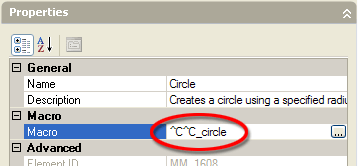
- The Properties area now changes to display the Circle button properties and under the "Macro" heading, you will see the macro used to start the Circle command. By default, this macro is: ^C^C_circle. To cause the Circle command to auto-repeat, simply add a "*" before the existing macro. Once edited, your macro should look like this: *^C^C_circle.
- Now click the "OK" button to save and return to the drawing.
Try the circle command and see what happens.
This technique can be used with most commands. For example, if you are doing a lot of dimensioning, you could auto-repeat the Linear Dimension command so that you can draw all your dimensions without breaking stride.
Tuesday's Tip
Selecting multiple grips
 Did you know that you can move more than one grip at a time? Select an object to display the grips. Hold down the SHIFT key and select as many grips as you wish. Release the SHIFT key, click again on any one of the highlighted grips and then click it's new position. All the selected grips will follow.
Monday's Tip
Cycling through grip modes
 When you have a grip selected, the normal mode is to stretch the selected object and AutoCAD displays ** STRETCH ** on the command line to let you know. But did you know that by hitting <Enter> you can cycle through the other grip modes - move, rotate, scale and mirror?
This is a really efficient way of working and means you can spend less time clicking the buttons on the Modify toolbar and more time editing.
Tutorials of the Moment
The most recently viewed tutorials
Stage 7: Setup Views
|
AutoCAD 2010: Ribbon Basics
|
|
Last visited: less than one minute ago |
Last visited: less than one minute ago |
|
Edges
|
Basic 3D and Surface Modelling
|
|
Last visited: 1 minute ago |
Last visited: 1 minute ago |


Local Navigation
Tutorials
Helping you to learn more of the skills you need, for free.
Featured Tutorial:
AutoCAD 2010: The User Interface - Part 2

CADTutor tutorials are comprehensive lessons, designed to give you a deeper understanding.
Total tutorials: 108
Michael’s Corner
Michael Beall shows you how to work smarter and faster.

Each month, Michael’s Corner presents a series of useful articles that help you use AutoCAD more efficiently.
Total articles: 592
Sponsored Links


